Nomadness

Geek Expressionism at Sea

Main Menu

Reviews

Photo Albums

Sponsored Links

Who's Online

We have 5 guests online
The GPS Datalogger PDF Print E-mail
Written by Steven K. Roberts   
Sunday, 14 December 2008 22:40

NOTE: In parallel with the system integration project on the boat (involving dozens of computers and over a hundred sensors), I am writing a book detailing all the designs.  From time to time, I will post a chapter here... whenever one stands alone easily without needing others for context.  This one is particularly simple, and also very useful:  it describes the application of a small off-the-shelf GPS Datalogger that stores every second of a journey, and the technique for turning that into a beautiful track overlaid on Google Earth.   


 La Conner to Camano Island


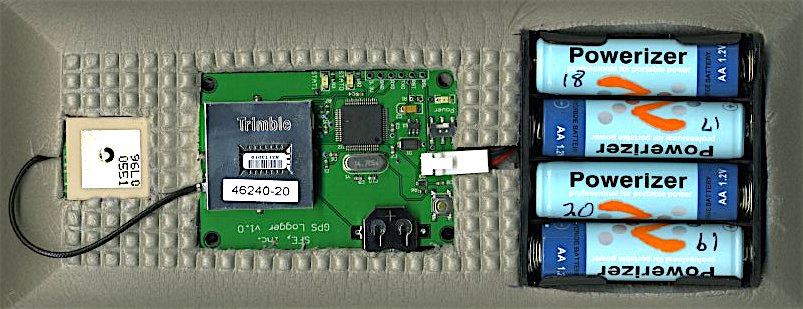
One of the most fun gadgets aboard Nomadness is a little waterproof pack that lives beside the companionway whenever the boat is underway.  It contains a GPS receiver piggybacked on a microcontroller board that simply does one thing:  every second, it grabs our location, pares it down to the bare minimum lat/long/elevation data, then writes that to an SD memory card plugged into a socket on the bottom.  Four AA batteries are good for a couple of full days on the water, and an LED blinks with every data point.

Whenever I think of it... or find myself writing a blog posting in which I want to include a map of where we have been, I pop the SD card into a little reader that plugs into the USB port on the side of my laptop.  I copy the files over (one for every time the datalogger was turned on), then delete them from the card and eject it, ready for the next use. 

Here’s where it gets fun.

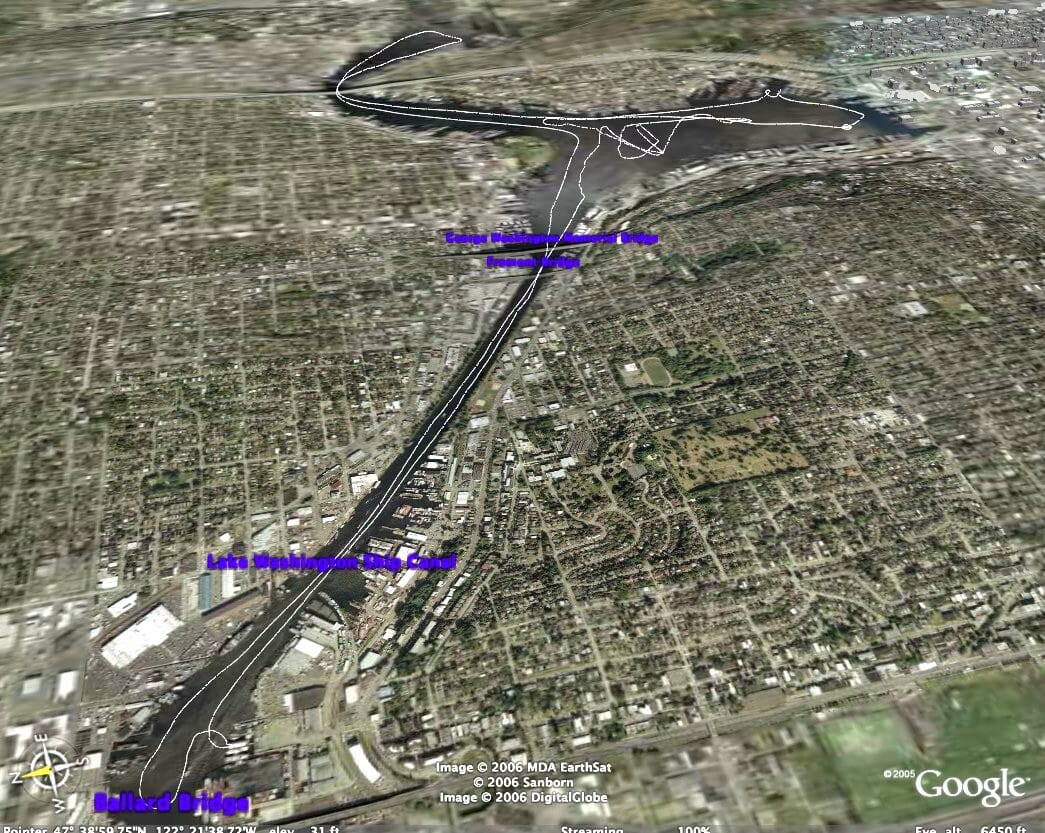
By pasting a bunch of coordinates into a template and naming the file with the .kml suffix, we end up with something that opens directly in Google Earth, displaying our track as a colored line over satellite view of the planet.  We can zoom in as necessary to examine the region of interest, then use a screen-capture tool to take a snapshot that can then be converted to a .jpg file and posted on the web.  Here, for example, is the somewhat embarrassing maneuver that was necessary at the end of a windy sailing day when I was trying to get into the assigned slip at a marina... in a crosswind.


Multipie passes at the dock


It took three passes.  I obviously need a bow thruster (the topic of a later chapter in this book).

These illustrations have added an entertaining twist to my published sailing yarns, and have occasionally revealed very useful information (such as the real efficacy of an hour spent beating hard against wind and current... something that felt virtuous at the time but in practice moved us almost nowhere).  It has even provided interesting diagnostic and performance data, such as the time we were in calm waters in south Puget Sound and decided we should go ahead and run through the calibration procedure on the new Maretron SSC-200 rate-gyro compass.

All we had to do, sayeth the instructions, was tell the Maretron display to begin the procedure, then take the boat in a series of 3 controlled circles at a steady rate of turn.  This we did, chuckling at the thought of folks with homes on the nearby cliffs who might find our behavior aberrant.  The compass reported the progress of the operation, then announced that calibration was complete and that we could now continue on our way toward an amusing weekend in Boston Harbor.

Only later, when I zoomed in on the day’s track, did I see that there had been a current running (this did not interfere with the calibration, and was subtle enough in the still water that we had not noticed it at the time).  It also revealed useful data about the ship’s turning radius.

I have also taken it on kayak trips, and even used it to plot the trails through the forest near my home (during the winter when the heavy leaf canopy would not interfere with GPS reception).


Calibrating the Compass


So, what does it take to put together one of these GPS dataloggers... and, why not just buy one?


Cobbling Together the Hardware


There are of course a few commercial loggers that do pretty much the same thing, but, like so many other products, are just highly marked-up incarnations of things that are actually quite cheap at their core... especially if you’re willing to handle electronics that are not slickly packaged, “productizing” them yourself.  A simple project like this is a good way to get familiar with some of the geek-oriented resources that are bringing a much-needed “do it yourself” ethic back into the world of microprocessors.

There are a variety of datalogger kits out there now, one of which even works on the Arduino boards that we will be using through much of this book (the “GPS logger shield kit” from Adafruit).  I have not played with this one, but it looks like a good approach... and is quite inexpensive.  It is also very hackable, especially if you have other reasons to be using the same controller board, though it is not really simple.

But mine is a turn-key unit made by a delightful company called Sparkfun Electronics, which offers a wide variety of geeky goodness.

The model in the photo below is already yesteryear’s memory... though new ones operate on identical principles.  I've had so many inquiries about these that I have become a dealer. The new one is nicely packaged in a small box with Lithium Polymer battery, and another is available (the “package tracker”) that you can tuck into a shipment to log location, shock, temperature, humidity, and barometric pressure.  The Nomadic Research Labs online store carries a marinized version that we assemble here, combining Sparkfun's Bluetooth GPS datalogger with a waterproof case and suitable padding, charging cable, and SD card... all pre-configured for ease of use on a boat and shipped with detailed instructions for use with your on-board laptop.  This can even be permanently mounted and remote-controlled.

(If you go to the store and it appears to be out of stock, please email me and I'll send you a note as soon as they are again available... at the moment, I am sourcing parts in small quantities so it can take a couple of weeks to restore inventory if I don't plan far enough ahead.)

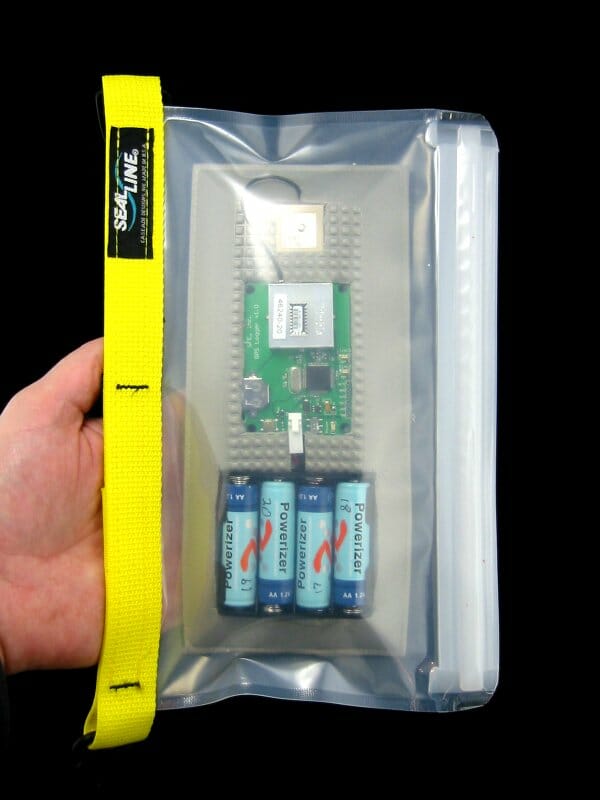
Whatever the hardware you choose, the key on a boat is protecting it from salt water.  A single drop will destroy anything like this, so please seal it well... for the one shown here, I used an “Electronic Case” from Sealline (which comes with a handy tapered foam insert that holds it all together) and it has survived a few wet rides on a kayak deck.  The ones we sell use gasketed Pelican cases.  Packaging is otherwise non-critical; you just need to make sure you can get into it conveniently to turn power on/off and extract the SD card for data transfer (unless it's the Bluetooth wireless version, of course).


GPS Datalogger in its case


Now let’s look in more detail at the procedure for turning the collected data points into a track on Google Earth.


Using the Data


The logger I used for the maps on this page creates text files with names like GPS0.TXT, with the number incrementing each time a power-cycle starts a new collection period.  These files are very simple, consisting of one line per second followed by a carriage return:

-122.5934066772461,48.4082603454590,2
-122.5933837890625,48.4082489013672,2
-122.5933609008789,48.4082336425781,2
-122.5933303833008,48.4082221984863,2
-122.5933074951172,48.4082107543945,2
-122.5932846069336,48.4081954956055,2
-122.5932617187500,48.4081840515137,2
-122.5932312011719,48.4081726074219,2

The comma-separated values are longitude, latitude, and elevation; in the 8-second snippet above, it looks like were moving roughly southeast.  Obviously, this is a little hard to interpret, so let’s make it prettier. 

The easiest way, by far, is to just grab the file and drop it into the amazing GPS Visualizer online tool.  This does it all for you, with output in any form you're likely to want.  But if you want to be geeky and do it yourself, here's the hack:

  1. Extract the SD card from the datalogger and insert it into a USB card reader.  I have one that plugs into the USB port on my Mac laptop, and these are commonly available.  With a little care, you can also slip it into any digital camera that uses the same card format, mount the device on your desktop, and drag the files to a local folder.
  2. Once you have the files copied, delete the ones on the card (and empty the trash).  You can now unmount the card and return it to the datalogger.
  3. Open the first file of interest, which will look like a long collection of lines such as those above.  It is best to do this in a plain text editor that does not add formatting... I prefer the excellent and free TextWrangler, but any will work as long as it doesn’t insist on styling the text.
  4. Scan quickly through the file and delete any lines that are all zeros. This can happen if the antenna is blocked or other glitches occur, and in the output would look like long, straight excursions to a point 380 miles south of Ghana and 670 miles west of Gabon (the intersection of the equator and the prime meridian).
  5. Open another file consisting of the KML template shown here: 


    <?xml version="1.0" encoding="UTF-8"?>
    <kml xmlns="http://earth.google.com/kml/2.0">
        <name>Paths</name>
        <visibility>0</visibility>
        <open>0</open>
        <Placemark id="khPlacemark552">
          <description>
              <![CDATA[If the <tessellate> tag is 1, the line will contour to the terrain]]>
          </description>
          <name>Tessellated</name>
          <LookAt>
            <longitude>-122.5</longitude>
            <latitude>48.4</latitude>
            <range>2500</range>
            <tilt>60</tilt>
            <heading>0</heading>
          </LookAt>
          <visibility>1</visibility>
          <open>0</open>
      <Style>
        <LineStyle>
          <color>ff0000ff</color>
          <width>3</width>
        </LineStyle>
      </Style>
          <LineString id="khLineString553">
            <extrude>0</extrude>
            <tessellate>1</tessellate>
            <altitudeMode>clampToGround</altitudeMode>
            <coordinates>
    ••• Replace this line with data points •••
            </coordinates>
          </LineString>
        </Placemark>
    </kml>


  6. Select the entire pile of points in the source file, copy, and paste in place of the red line of text between "coordinates" tags.  If you sat in one place for a while with the logger running at either end of the trip, feel free to delete redundant points at the beginning or end of the file.. they will just show GPS dithering noise at maximum zoom.
  7. You can edit the line color and thickness  in the <LineStyle> section, which in the template above is red and 3 pixels wide1.
  8. The <LookAt> section allows you to tell Google Earth what to show first when you open the file.  It is most sensible to make the longitude and latitude something close to the beginning location of your trip.  You can also initialize the number of miles off the surface of the earth for the initial view, the direction you are pointing, and the tilt angle of the surface.  Experiment until you get something you like... I find I don’t change it often, since I usually use one file to open the application and then browse others from there.
  9. Save the new file (NOT over the template!), with any suitable name and a .kml extension.  I habitually name the trip log files with sequential numbers (as track15.kml), though the downside of this is that when they are displayed as a list in Google Earth I have absolutely no idea which is which, making it hard to turn some off for clarity.  Perhaps filenames beginning with a number and ending with a placename tag (like 15-ganges-cowichan.kml) would be more friendly and serve both needs.
  10. Double-click the file, which should open in Google Earth.  If your computer stares numbly back without doing anything useful, you may need to install the application (which is free and excellent).
  11. You can create an image like those shown here using a screen capture program (on the Mac, I use "Grab").  Google Earth also provides community publishing tools.


And that’s it!  Now you have a way to log every second of your journeys, then go back later and “fly” through them at any level of magnification.  One of mine clearly showed me closing on a reef that I very nearly hit in a moment of inattention aboard my trimaran (Stacey Rock in Desolation Sound); another lets me re-live the nightmare of drifting sideways down a long fairway surrounded by expensive boats, unable to bring the bow into wind and current (I was saved by a dock angel who caught a stern line and spun me around). 

It’s a great tool, even for those moments you’d rather forget.

A decent chartplotter (or navigation package for a computer) will also capture tracks, but the dedicated datalogger not only provides excellent resolution at a minimal power cost, but is also portable enough for a variety of other uses.  And, the above procedure notwithstanding, there is now an online tool that simplifies the process of generating the KML files (details included with our $200 kit).

Now... what’s missing from this device is the ability to generate a real-time “feed” of our location to a public webserver.  Wouldn’t it be nice if friends and family could see your current location on the water, know when to head out to meet you, and recognize when you might be in a bit of trouble?  Or, less ominously, would it not be satisfying to know that your old co-workers were at their desks, popping up a window with your slowly-moving sailboat icon gradually making its way through a satellite image of a particularly alluring archipelago?

That’s exactly what we’re going to do in our next chapter... use APRS to update a public server with a live icon showing our current location.


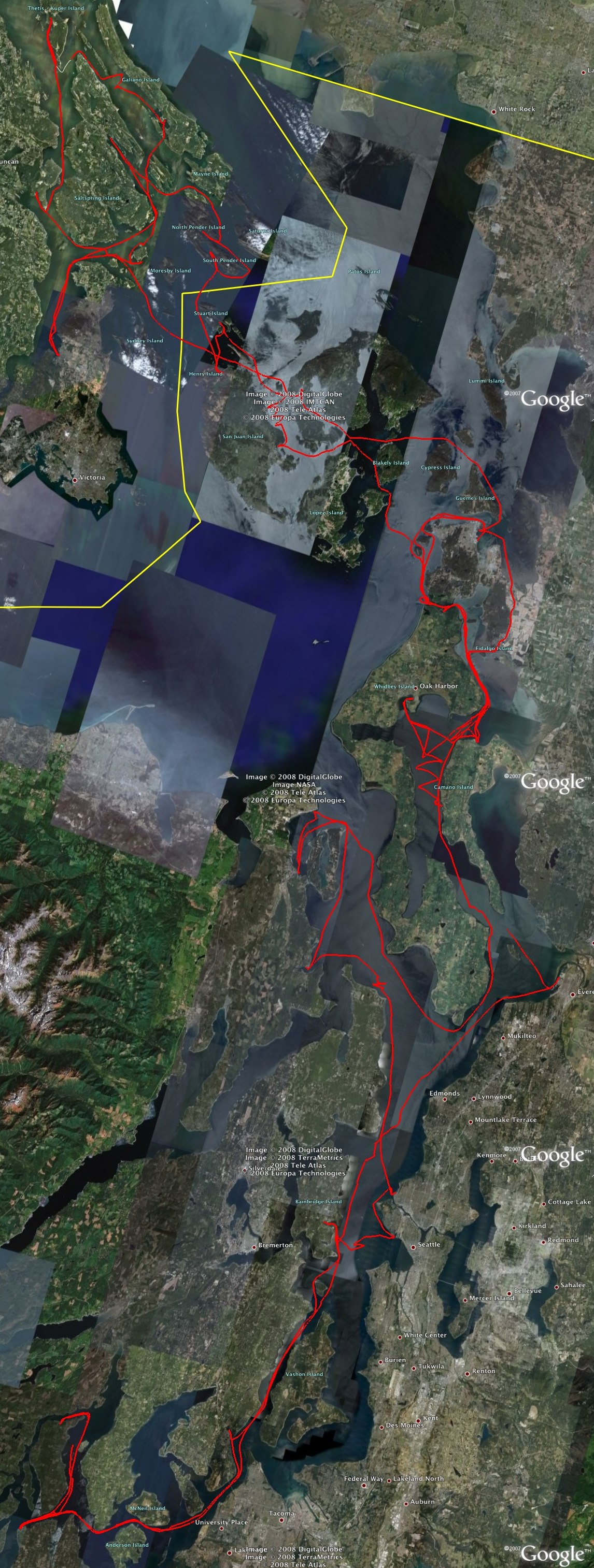
Track of the 2008 Shakedown Cruise of Nomadness


Last Updated on Friday, 12 June 2009 03:56
 
Joomla 1.5 Templates by Joomlashack